My Shed Plans PDF: How the Downloads and Printing Work
The plans reach you as PDF pages inside downloadable bundles. Here is how to unpack them, search them, print the sheets you need and deal with the big files without losing an afternoon.
- Written by
- HealthCure Guide Editorial Team
- Reviewed by
- HealthCure Guide Editorial Team
- Updated
- Reading time
- 7 min read
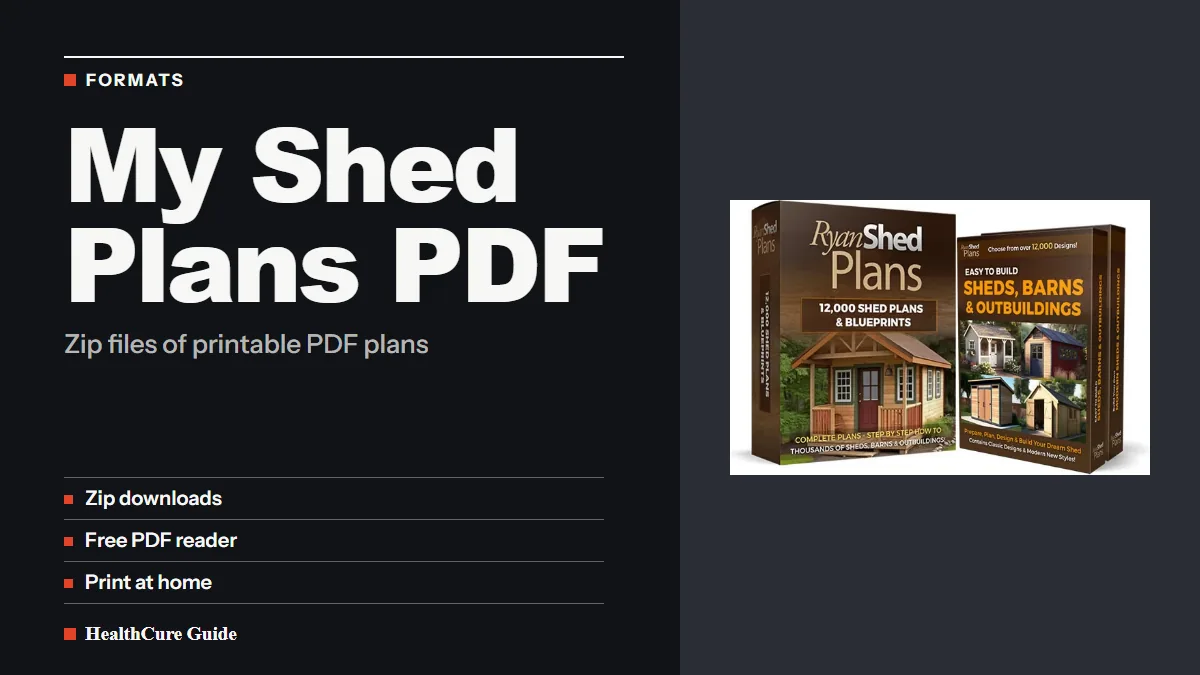
If you are wondering how a My Shed Plans PDF reaches your desk, the answer is simpler than the file sizes suggest. Each plan is a set of PDF pages, and the pages come to you inside compressed bundles from the members area. You unpack the bundle, open the PDF, search for the dimension you need and print the sheets that matter for your build. The seller lists one payment of $37 for the whole library, and every download sits inside that single purchase.
Why the My Shed Plans PDF ships as compressed bundles
A library of about 12,000 plans, by the seller’s count, would be unwieldy as thousands of loose files. The seller bundles the material instead, so a set of drawings, lists and instructions travels together. The seller says one PDF can hold several blueprints, which is why a single file may look longer than you expect. The seller also notes that these bundles are large and can take some time to arrive on a slower connection.
Think of the bundle as a shipping box for a single design. Open the box, then move through the sheets in the order the drawings suggest. The arrangement keeps the materials list close to the cutting list and the cutting list close to the instructions, which makes it easier to follow a build from first cut to last without flipping between folders.
Setting up a reader before the first download
The plans need a PDF reader. A free reader is enough for the library, and the seller points buyers toward Adobe’s free option. Any current viewer that handles multi-page documents and zoom will work, so you can keep the program you already use if it does the job. Install the reader before you begin the first download, so that the first file opens the moment it finishes.
Set the reader to show one page at a time with a fit-to-width view. Drawings are dense, and a wide view makes small dimension labels hard to read. Zoom in on a single detail, such as a joist spacing or a door header, rather than trying to read the whole sheet at once. Most readers keep the zoom level between pages, which saves a lot of clicking.
Searching inside a large file
Searching is where the PDF format earns its keep. The seller says you can use the search function to find a word or number inside the file. Type a dimension, a part name such as rafter or header, or a roof term like pent, and the reader jumps to each match. For a long bundle with several designs, that search turns a scroll-heavy hunt into a few seconds of work.
Use search with a little discipline. Search for a measurement that appears only once in the design, such as the overall height, to land on the right sheet. Then bookmark that page, or note its number, before you move on. A single search that ends on the wrong design is a common cause of confusion, so check the title block at the top of each sheet before you trust the numbers.
Large downloads, handled patiently
The honest truth is that large downloads take patience. Begin the bundle on a stable connection, close other programs that use bandwidth and avoid queuing a second large file at the same time. If a download stops partway, return to the members area and restart it rather than opening a partial file, since a partial bundle can unpack with missing pages.
Keep a dedicated folder for each design. Name it with the shed type and the size so you can find it again next month. Store one copy on your computer and another on an external drive or a cloud folder you control. That habit costs a few minutes and saves a frustrating search later, especially when the plans are your only record of a particular design.
Matching the sheets to your build order
Sheets in a bundle follow the order a builder needs. The materials list belongs with the first trip to the yard, the cutting list goes on the bench before the saw comes out, and the instruction pages come last, once the frame parts are cut and dry-fitted. Reading the bundle in that order keeps you from cutting a roof rafter before you know the wall height it has to sit on.
Mark each sheet you have finished with a pencil tick on the printout, or keep a short checklist beside the folder. A ticked page is easier to trust than a memory of yesterday’s work. When you return to a build after a break, the ticks show where you stopped and which sheet comes next.
If a sheet looks unclear, read the title block and the scale bar first. Those two items confirm the design name, the revision and the units, which tells you whether the page belongs to the plan you think it does. Then move to the dimension lines. The My Shed Plans hub gives the sizes and styles on one page, which helps when you are checking that a sheet matches the design you chose. Reading in that order avoids a common slip, which is taking a number from one design and applying it to another when several designs sit in one folder.
Printing sheets at home
Most builders print only the pages they need. A materials list goes on paper for the lumber run, the cutting list goes on the bench and the step sheets go into a folder with a plastic cover. Printing the whole design is rarely necessary, because the drawings are easy to read on a tablet while you work.
Check the scale setting in your print dialog before you print a drawing. Choose actual size or 100 percent, and turn off any fit-to-page option that could shrink a dimensioned sheet. Measure a printed scale bar or a known dimension on the page to confirm the output is true. A printed plan that has drifted in size will mislead your cuts, so this one check is worth doing every time.
The optional computer disc at checkout
At checkout you may see an offer for a disc. The seller describes it as a PC DVD-ROM copy of the core plans, shipped to you as a physical disc. It is made for a computer, so it will not play in a home DVD player. The seller lists a delivery window of 12 to 18 working days for the disc.
The disc is optional. You do not need it to use the library, because the downloads already give you the same plans. Some buyers like a physical copy as a backup, and that is a sensible reason to order one. Read the checkout screen carefully before you agree to it, and make sure the total matches what you expected.
Free PDF plans from other sites
Searching the web for free shed plans will turn up many downloads that look similar. Those files come from other sources, with their own terms, and they are not the same product. Their depth and their help options vary a great deal. A free file can be useful for inspiration, but it does not carry the lists, the members area or the seller’s help desk that come with the library.
When you compare a free sketch with the library, look at the parts that matter for a build: the materials list, the cutting list, the number of roof styles and the way you get help. Those details settle whether a plan is usable for your shed, and they are where a paid library and a loose file usually differ.
Good to know
- The plans are PDF pages in compressed bundles, so you need a PDF reader and time for the download.
- The optional computer disc is for a PC, not a home DVD player, and it is not needed to use the library.
- Read the what’s included page to see the full set of parts before you order.
Once you know how the files work, the next question is usually what else comes with the order. Our guide to the My Shed Plans bonuses walks through the four extras, and the where to buy guide explains how to reach the genuine order page. The My Shed Plans hub brings the core facts together in one place.
Common questions
What file type are the My Shed Plans?
The plans are PDF pages. They arrive inside compressed bundles that you unpack on your computer, and the seller says one PDF can hold several blueprints.
Do I need a special program?
A free PDF reader is enough to open and print the plans. The seller recommends Adobe's free reader, and any current PDF viewer should also work.
Why are the downloads so large?
The plans include drawings, 3D views and photos, and the seller says the bundles can take a while to download. A steady connection and a spare few minutes are worth having.
Can I print the plans at home?
Yes. The pages are made for printing, and you can print only the sheets you need. Check the scale setting in your print dialog so the dimensions stay true.
Is the computer disc needed to use the library?
No. The disc is an optional PC DVD-ROM offered at checkout, and it is not needed for the downloads. It ships in 12 to 18 working days, per the seller.
Are free PDF shed plans on other sites the same thing?
No. Free files from other sites are separate products. The library described here is sold through the official order page, with its own members area and support.